


Years ago, a business intelligence VP named Wendy started a big data project with a story. "When Joe knocks on the door, I want you to know it's Joe," she said. "Even on Halloween. Pirate, scarecrow or cat, whatever the costume, it's still Joe."
That's the whole idea behind one customer, one record. Joe Smith signs up with his Hotmail to use your product. Joseph Smith lands in your CRM with his work email. Joey Smith pays an invoice. Same person, three systems, three costumes. Your CRM should know it's Joe every time, so anyone who looks him up sees his whole story.
One record per customer pays off fast:
- Your reports count real people, not echoes.
- Two teammates stop emailing the same person on the same day.
- When a customer calls, everything you know about them is on one screen.
Here's the plan. First, close the door on new duplicates, so you're not mopping while the tap's still running. Then give every customer one home, and keep it that way.
The quick win: close the door on new duplicates
Most duplicates start the same way. Someone needs to log a call, and creating a new contact feels faster than searching for the old one. So the first habit is the simplest: search before you create. Five seconds now saves a merge later.
Then let your CRM help. Each one has a built-in gatekeeper. Your job is to give it something reliable to check.
Pipedrive
Good news: Pipedrive now lets you edit its matching rules, so you decide what counts as a duplicate. Out of the box, it flags people who share a name plus an organization, email or phone, and organizations that share a name and an address. A few small changes make it much sharper. Open Tools and apps, then Merge duplicates, then the Edit matching rules button on the right.
- People: keep the three rules and turn on Skip empty fields. Name with organization, email or phone covers the common cases. With Skip empty fields on, Pipedrive only matches records where every field in the rule has a value, so two people with a blank phone number don't get paired up.
- Organizations: turn on Skip empty fields and add a Website rule. Click + Rule and match on website. Now Acme Ltd and Acme Limited line up as a pair when they share a website, even if the names or addresses differ.
- Make email your key for people. Two people can share a name. They rarely share an email address.
- Make Organization required for people. Out of the box it's optional, which is how Susie Smith ends up in Pipedrive 20 times with no company. Every person should belong to an organization. On Premium and higher plans, an admin can go to Data fields, choose Person, open the menu on the Organization field, select Edit and tick Required.
- Fill in the website on every organization. Make it required. Your new Website rule can only match what's there.
- Leave the duplicate check on when you import. Every import offers to spot and merge duplicates. Say yes.
HubSpot
HubSpot already does some of the work, on every plan. It matches contacts by email address and companies by company domain name. When a form or import brings in a known email or domain, HubSpot updates the existing record instead of creating a new one.
- Always capture the email. A contact without one can't be matched, so it becomes a brand-new record.
- Include email and domain columns in every import.
- Keep an eye on connected apps. Companies created through an integration aren't matched by domain, so a sync app can add copies quietly. Check its settings for a matching option.
- On Professional and Enterprise, the duplicates tool checks for new pairs every day. With Data Hub Professional or Enterprise, you can add up to two custom matching rules per object, such as phone number or an ID from another system.
Salesforce
Salesforce gives you the most control. It also has two settings that puzzle almost every new admin. I remember being that admin. Here's the plain-English version: it all comes down to two questions.
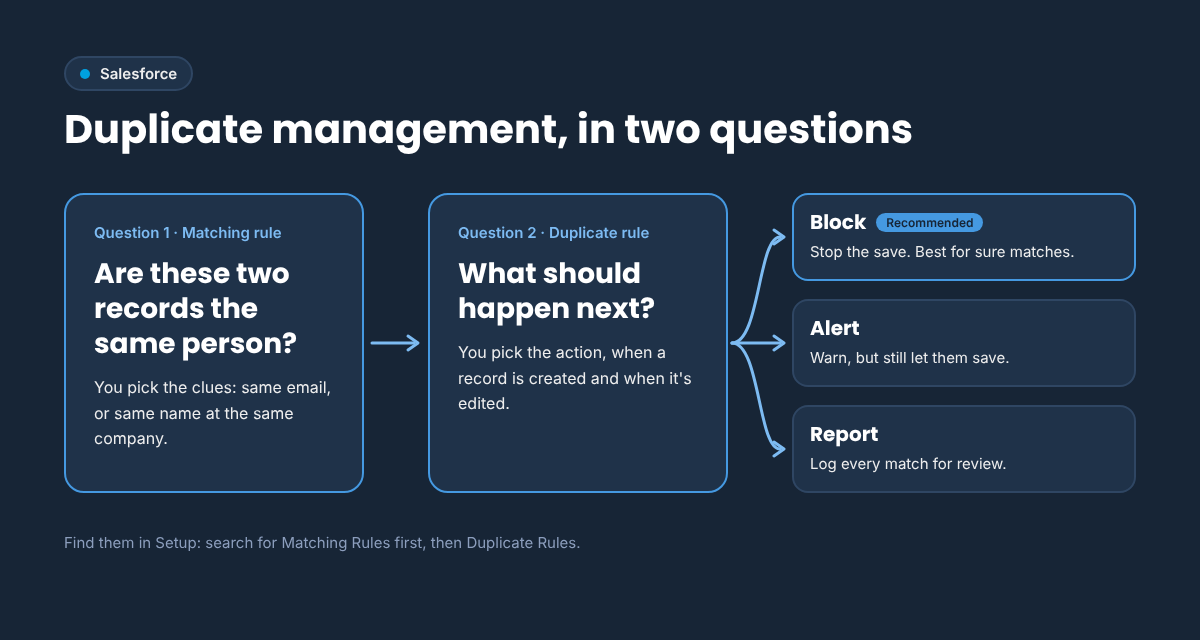
"Diagram: a Salesforce matching rule asks whether two records are the same person; a duplicate rule decides what happens next: block, alert or report."]
1. Matching rule: when are two records the same person?
Salesforce ships standard matching rules for contacts, leads and accounts, and they're active by default. The standard contact rule says two contacts match when their first and last names are similar (it allows nicknames, typos and even swapped first and last names) and at least one more detail lines up: email, phone, account name with title, or mailing address.
That's a good start. You can't edit the standard rules, but you can build your own. A few that work well:
|
Matching rule |
When it fits |
|---|---|
|
Email, exact |
Your simplest, surest rule. Same email, same person. |
|
Last name exact, account name exact, first name fuzzy |
Catches Joe and Joseph at the same company, even without an email. |
|
Phone exact and last name exact |
Handy when your team works by phone more than email. |
✨Two tips. Never match on name alone, because two real Mike Johnsons can work at different companies. And leave Match blank fields unticked, so two empty emails don't count as a match.
2. Duplicate rule: what happens when there's a match?
A duplicate rule points at one or more matching rules and decides the action. Out of the box, the standard rules show an alert ("Use one of these records?") but still let people save, then log the match to a report. In other words, they warn. They don't stop.
My recommendation: block duplicates. Set your sure-thing rules, like exact email, to Block on create and on edit.
If your rule is looser, like a similar name at the same company, start with Alert for a day or two. Check that it's catching the right records, then switch to Block. And if your business really does need Alert, turn on Report and check that duplicate report every week, so new copies get caught while they're small.
✨Two more tips. If you have both Block and Alert rules on the same object, put the Block rules first, because a record that matches one rule skips the rest. And if an integration creates records for you, test it after you turn on Block so its sync keeps running smoothly.
Make it stick: give every customer one home
With the door closed, it's time for the big tidy. Look at your whole database, not just last month's new records. Duplicates hide everywhere, and a partial clean-up means doing it again next year.
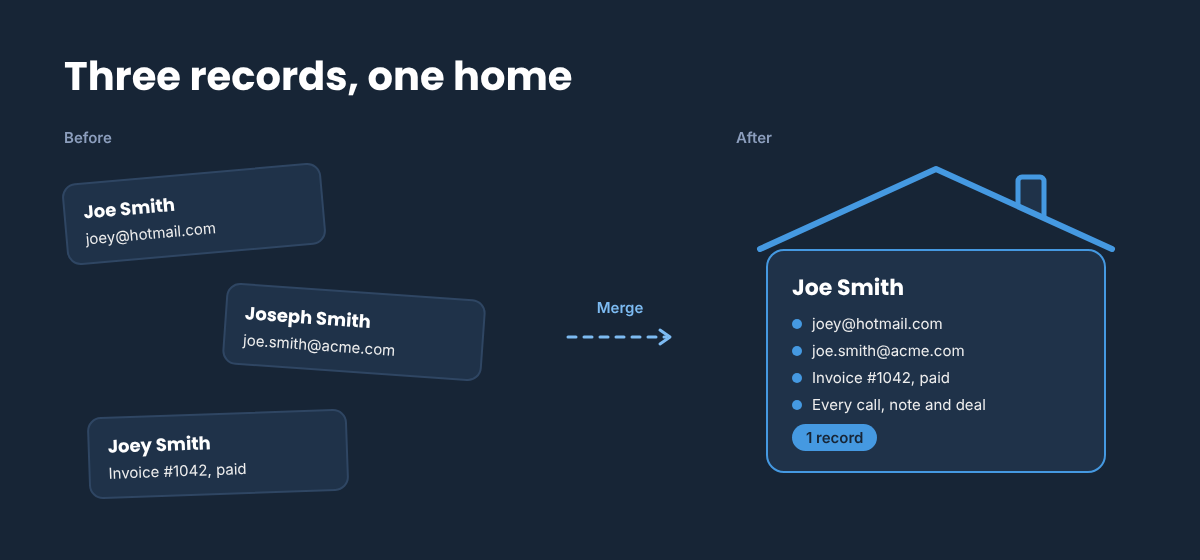
✨Before you start, take a quick backup. Export your contacts. It takes two minutes and buys real peace of mind.
Decide which record wins
When you merge, one record becomes the main one, and its values win any tie. The right pick depends on your CRM, mostly because of the created date.
|
CRM |
What happens to the created date |
Make this one the main record |
|---|---|---|
|
Pipedrive |
The main record keeps its details, so a newer main record can make the customer look newer than they are |
The oldest record, so you keep the original created date |
|
HubSpot |
Always keeps the oldest create date, whichever record you pick |
The one with the best, most recent data |
|
Salesforce |
Always keeps the oldest Created Date, whichever record you pick |
The one with the best, most recent data |
Pipedrive
Go to Tools and apps, then Merge duplicates. Pipedrive lists the pairs it found, with created dates side by side, which makes picking the oldest easy. Admins see every pair, and other users need permission.
With your new matching rules in place, the list catches far more. For anything it still misses, try a quick spreadsheet check. Export your people, sort by email, and look for repeats. Then merge any two records from the More (...) menu on either one.
HubSpot
On Professional or Enterprise, open Contacts or Companies, click the three-dot menu, then Manage duplicates. HubSpot lists likely pairs for you to review and merge. Bulk merging needs Data Hub Professional or Enterprise.
On HubSpot's entry plans (the no-cost version and Starter) (that's me, by the way), there's no duplicates tool, but you can merge any two records by hand from the Actions menu on a record. Finding them is the fun part:
- Export your contacts.
- In Excel or Google Sheets, sort by email and use conditional formatting to highlight duplicate values.
- Sort again by last name, then first name, to spot the same person with two emails.
- Or hand the export to an AI tool and ask it to flag likely duplicates for your review. Use one your company has approved for customer data.
Salesforce
Salesforce merges up to three records at a time. Open a record with duplicates and use the Potential Duplicates panel, or merge from an account's Contacts list. On Performance and Unlimited editions, Duplicate Jobs scan your whole org with a matching rule and list every set it finds.
🔦Small tool spotlight: Apsona Dedupe & Match 🔦
Nobody's paying me to say this. I just love it. If you're merging a lot of Salesforce records, or hunting duplicates on a custom object, Apsona Dedupe & Match saves a huge amount of time.
It works on any standard or custom object. It matches exactly or loosely, and it knows that Bob and Robert can be the same person. It lets you export and back up what it finds before merging. My favourite part: you build rules, as detailed as you like, that decide which record becomes the main one. Then it merges the whole batch and moves the related records over for you.
Two things to know. It needs the base Apsona for Salesforce licence, and big jobs use API calls, so keep an eye on your limits.
Keep it that way: a regular check-up
Even with every rule in place, plan a quick audit, quarterly or yearly. Export your data, sort by email, then by last name and first name, and look for patterns.
Or hand it to an ADHD friend who's great at spotting patterns. Finding the odd one out in a sea of rows is my happy place.
Between audits, let the reports do the watching. Check Salesforce's duplicate report, HubSpot's duplicates tool, or your Pipedrive saved view once a month. We'll build that monthly routine together in another post of this series.
Quick answers
What's the difference between a matching rule and a duplicate rule in Salesforce?
A matching rule decides when two records count as the same person, such as the same email. A duplicate rule decides what happens next: block the save, show an alert, or log it to a report.
Does merging change a customer's created date?
In HubSpot and Salesforce, the merged record always keeps the oldest created date. In Pipedrive, the main record's details win, so make the oldest record the main one.
Can I find duplicates on HubSpot's entry plans? Yes. Export your contacts, sort by email in a spreadsheet and highlight duplicate values. Then merge each pair by hand from the Actions menu on a record.
Your next step
Close the door first. Pick one rule or required field from the quick win and switch it on today. If you can't block every duplicate yet, set up the report that catches them early. Then plan your full tidy, one list at a time: people first, then companies.
Want a hand? Let's chat. I'm happy to do the merging for you, but I'd much rather set things up so you don't need me for it next year. No jargon, no pressure.